Licensing
Before running RiverFlow2D or OilFlow2D, a license must be activated. Hydronia offers two models; the steps to activate differ between them.
License models
- Standalone — a single license tied to one computer. Activates once; can only be used from that machine. Best for individual engineers and small teams.
- Network — a centralized license on a shared machine (the network server) that lets any number of client machines install the software, but limits the number of concurrent users to what you purchased. Best for larger teams and office environments.
Hydronia's licensing layer is CopyMinder. The license key you receive is a CopyMinder product code.
Standalone activation
Do this on the machine that will run the software.
- Open the Hydronia DIP shortcut on your desktop.
- In the left-hand Control Data section, go to Options → License.
- You'll be offered three options:
- Reactivate License
- Install Network License Server
- Check for Updates
- Click Reactivate License.
-
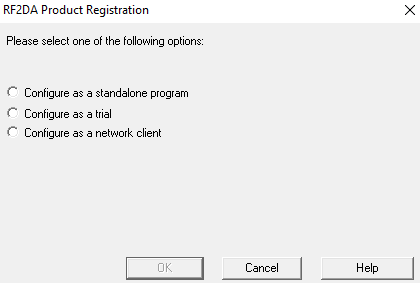
When the activation dialog opens, select Configure as a standalone program.
-
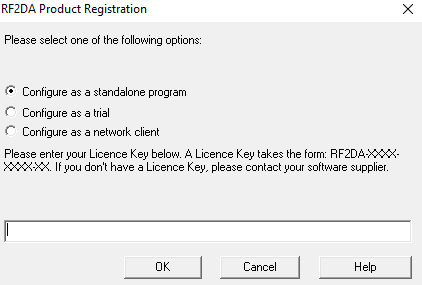
Enter the license key Hydronia sent you.
-
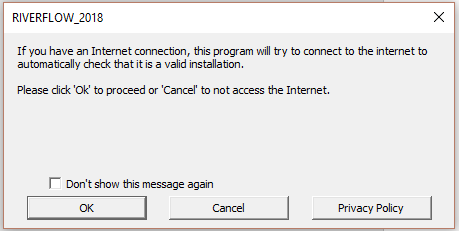
Click OK. CopyMinder contacts its server to validate the key.
-
Fill out the Product Registration dialog with your details.
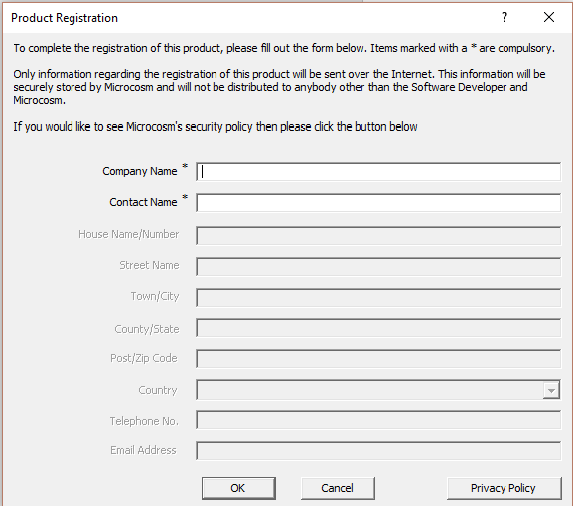
Once registration finishes, the software is licensed on that machine. You can now enable the QGIS plugin.
One activation per license
A standalone license can only activate once. If you need to move it to another machine, contact support@hydronia.com for a transfer.
Network server installation
Do this once, on the machine that will host the license server (the network server).
The Network Administrator needs a CopyMinder license key configured for network use. Don't share this key with end-users — it's separate from the client activation step and giving it out can cause client activations to fail in confusing ways.
- Open RiverFlow2DDIP on the server.
- Control Data → Options → License.
- Click Install Network License Server.
-
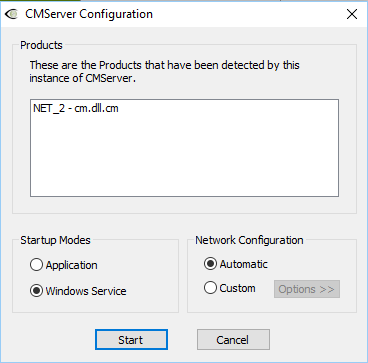
CMServer's configuration window opens.
-
Under Startup Modes, pick:
- Service (recommended) — runs as a Windows background service; no login required on the server.
- Application — requires an interactive login on the server. Use only if your IT policy forbids services.
- Under Network Configuration, choose Automatic.
- Click Start.
-
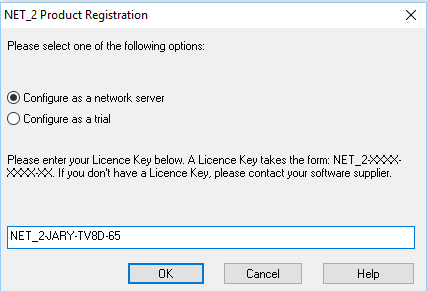
When prompted for a License Key, enter the network license key from Hydronia Support.
-
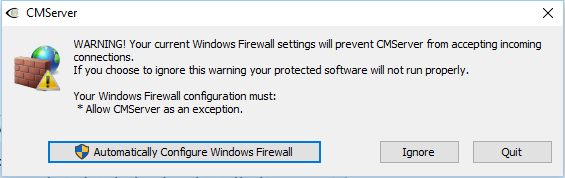
Accept the firewall prompt — choose Automatically Configure Windows Firewall.
-
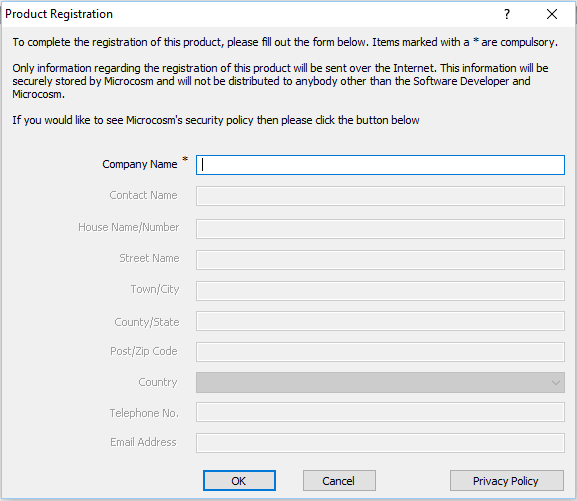
Fill out Product Registration with your organization's details.
-
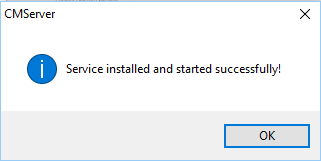
On success, you'll see a confirmation message. The server is now ready for clients.
Checking who's using a network license
In the CMServer viewer, every active license appears with the client's machine name or IP and username.
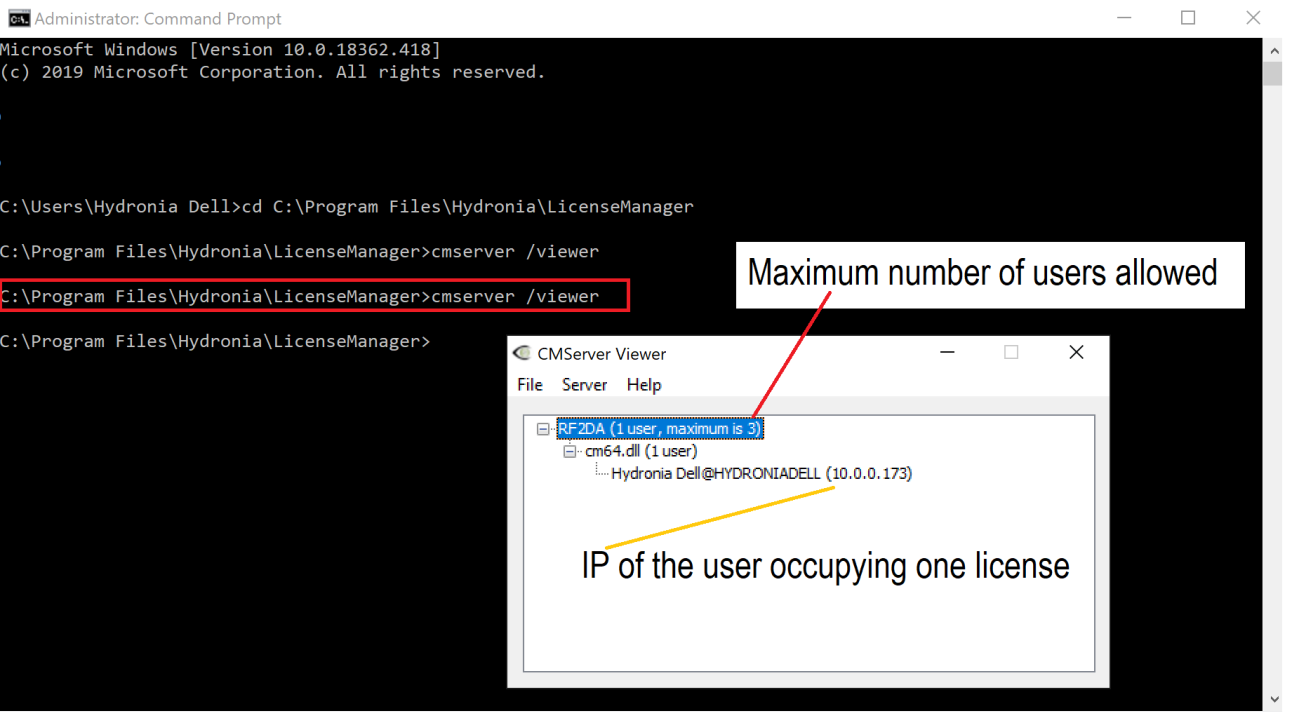
If CMServer is running as a service, open the viewer from a command prompt:
This connects to the running service and displays current usage.
Network client installation
Do this on every client workstation that should run the software.
Install the software first (see Installation), then:
- Open RiverFlow2DDIP on the client.
- Control Data → Options → License → Reactivate License.
- Select Configure as a Network Client.
- In most cases the client auto-detects the CopyMinder server on the LAN and fills in the details.
-
If auto-detection fails, enter the server's IP address or hostname followed by
:10589— for exampleLenovoJJ:10589or10.0.0.12:10589.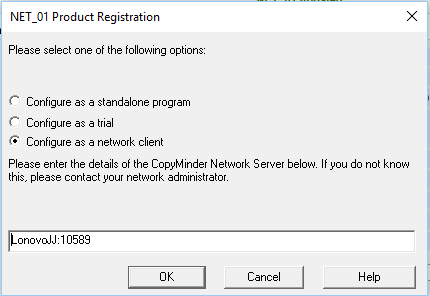
-
Click OK. The client should start working immediately.
Repeat for each client machine. Clients can be installed on as many computers as you want — only the configured number of concurrent users is capped.
Troubleshooting
Activation fails with no error
Confirm the machine has rebooted after the install. Licensing components are unreliable until the first post-install reboot.
"Cannot reach license server" on a client
- Verify the server's IP/hostname is reachable:
ping <server>from the client. - Confirm port
10589is open on the server's Windows Firewall. - If CMServer is running as a service, check the Windows Services panel for CopyMinder Server in the Running state.
Finding your license file
If support needs to see the raw license record, open the correct file in Notepad:
- Standalone:
C:\ProgramData\AVU\RF2DA.ini - Network License Server:
C:\Program Files\Hydronia\LicenseManager\RF2DA.ini
Paste the contents into a support email — never share these in public channels.
Contact
For anything licensing-related, reach Hydronia Support at support@hydronia.com.