Creating your first river flow application with OilFlow2D
This section provides a step-by-step guide to help you get started with a OilFlow2D project using the QGIS interface. The example illustrates the model application to simulate flow in a river with a single inflow upstream and a single outflow downstream. It includes instructions to enter the terrain elevation data, create the mesh, prepare the layers with the input information, and run RiverFlow2D.
Starting a new project
::: shaded The files required to follow this tutorial can be extracted from the 'ExampleProjects' zip file under the 'Hoh_QGIS_Metric_Units' folder. This zip file is downloaded separately from your installation materials. :::

The first step is to start the QGIS software clicking the QGIS desktop icon  . If this icon is not available, you can run the 'qgis-bin.exe' executable on the QGIS 'bin' subdirectory. After loading, you will see a window similar to the one shown below:
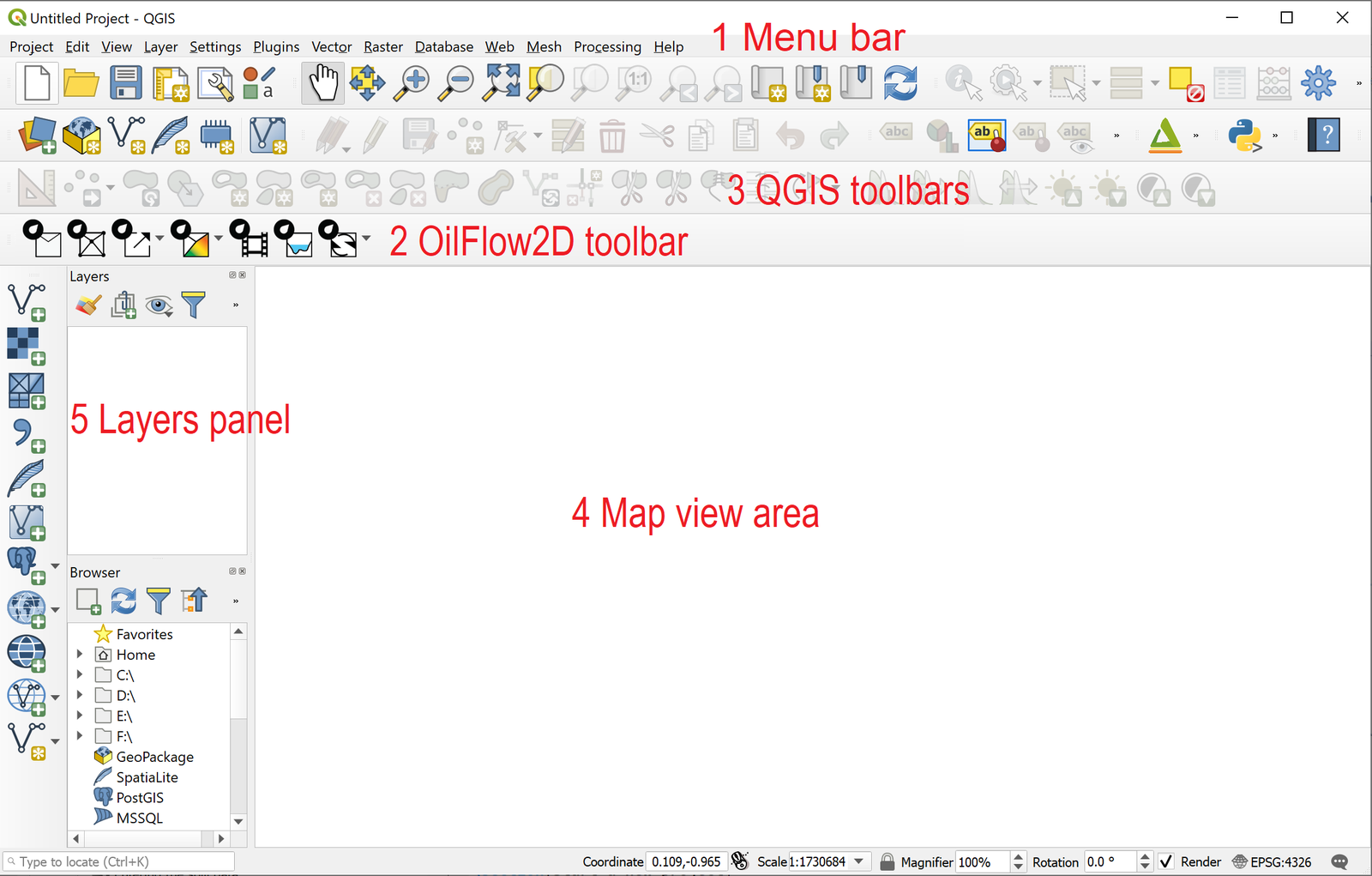
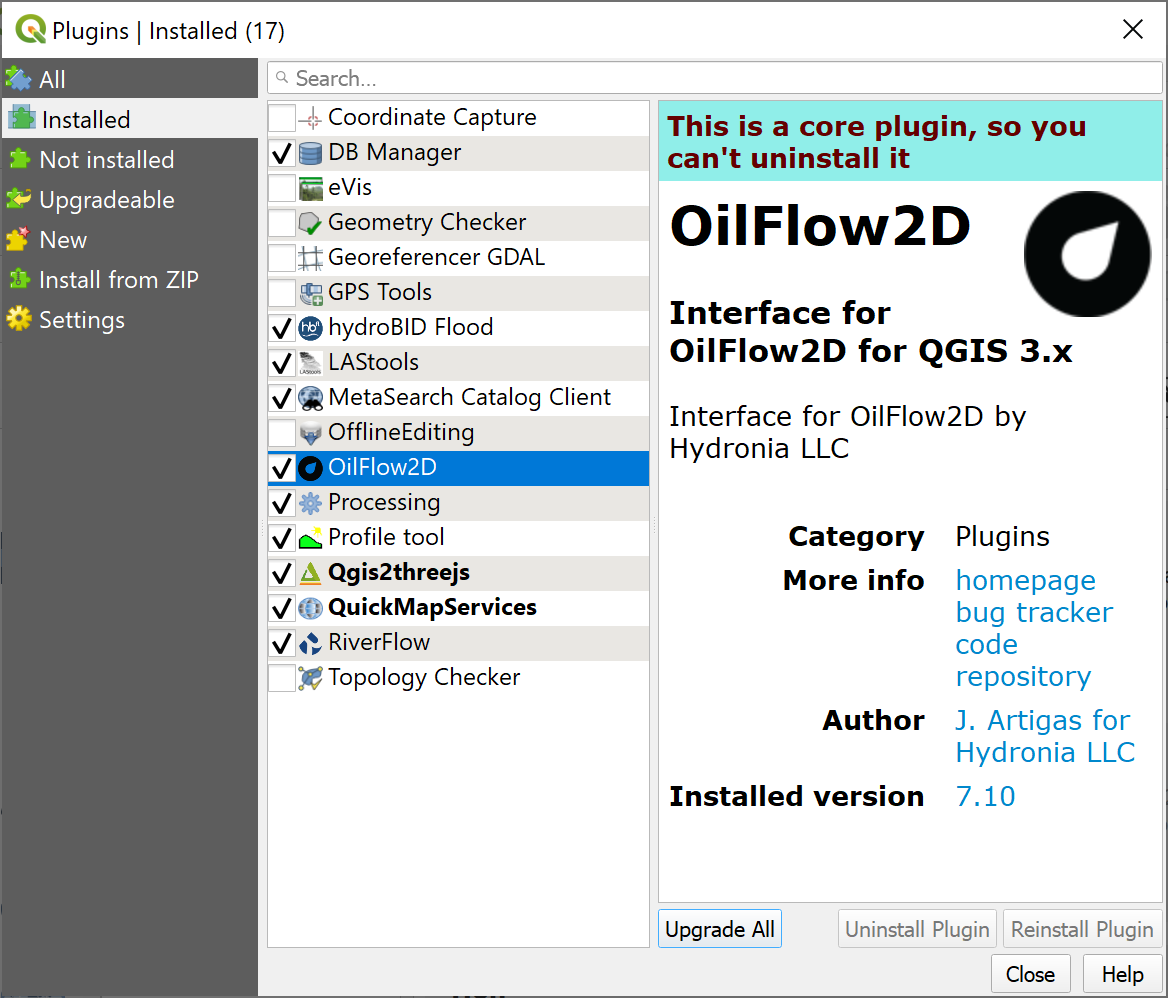
If you don't see the toolbar with the model icons as shown, you will need to activate the plugin using the Manage and Install Plugins... command under the Plugins menu.
Start a new project
-
To create a new OilFlow2D project, click on the New OilFlow2D Project button
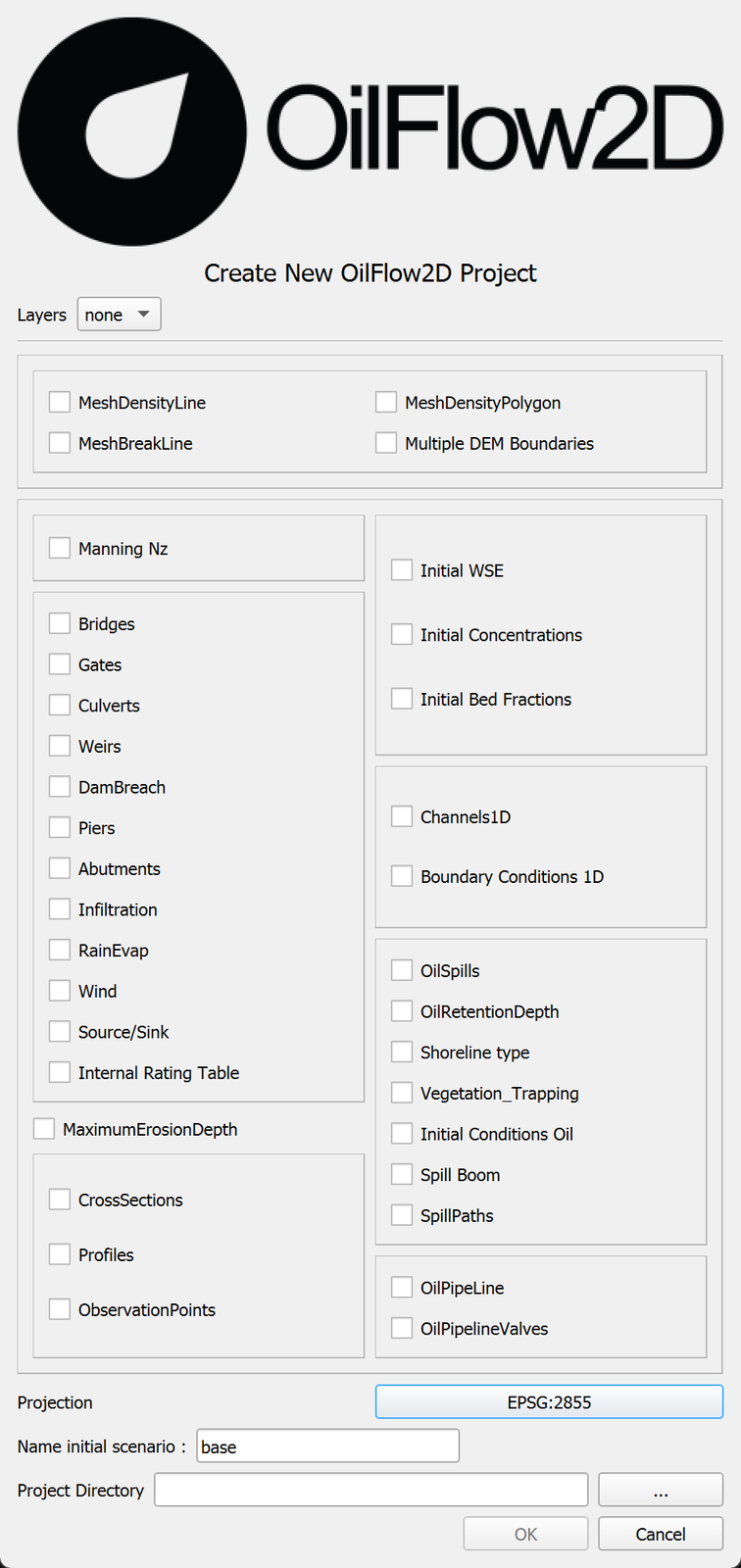
 in the toolbar. to start a new OilFlow2D project. A dialog window appears where you select the layers that will be created, the Coordinate Reference System (CRS), and the directory path where the layers will be saved. This example will use the basic layers: Domain Outline, Manning N, and BoundaryConditions
 -
Select None in the Layers drop down menu.
-
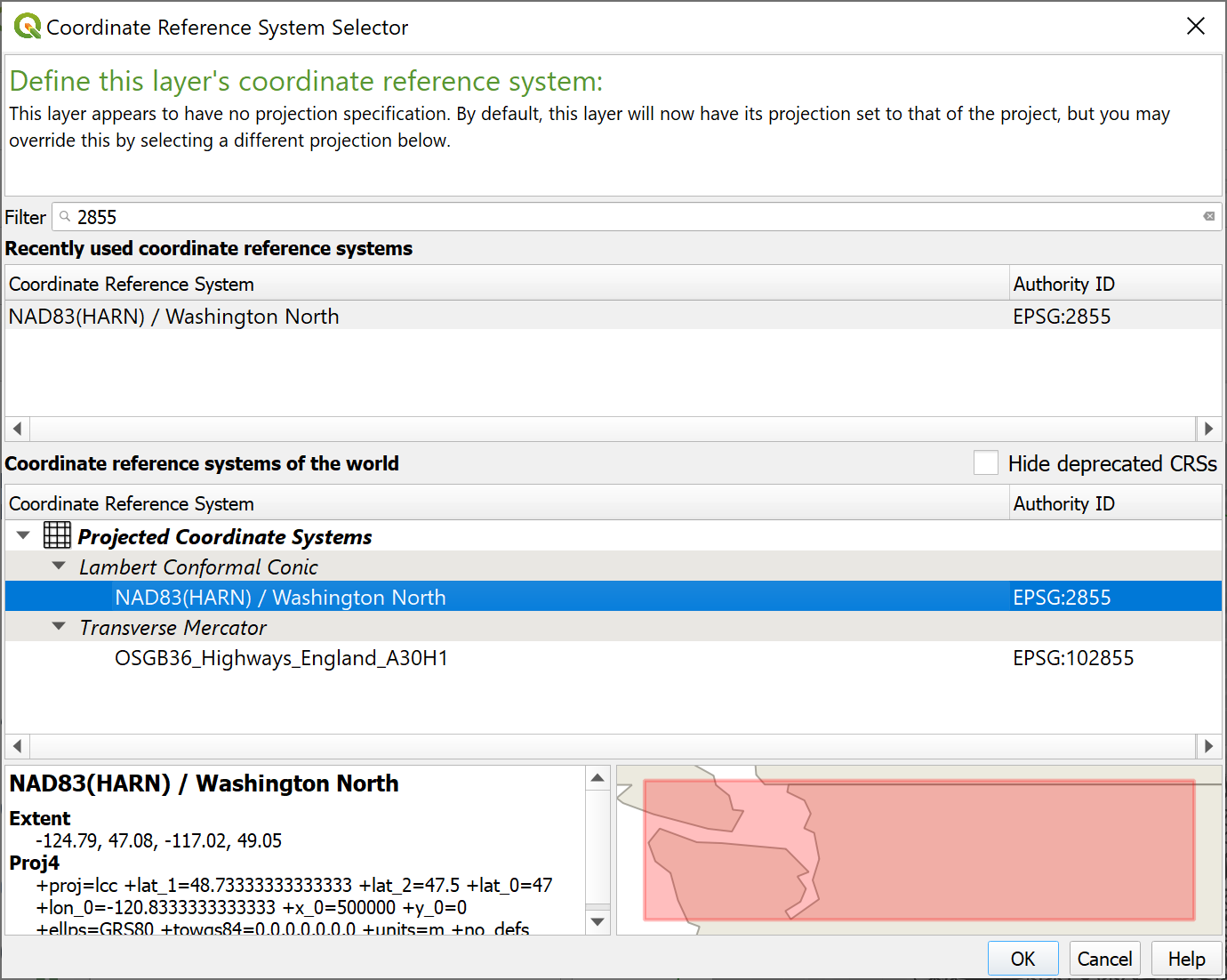
Select the Projection button. In the Filter textbox, type 2855 and select the Coordinate Reference System as shown:
-
Click OK.
-
Select EPSG:2855 that corresponds to the NAD83(HARN)/Washington North Coordinate Reference System (CRS):
-
Click the
 button to provide a path to store the project files in the Project Directory textbox. This will be the folder where the model will write all results and output files.
 -
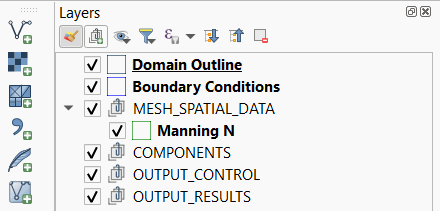
After clicking OK, the layer templates are created, and displayed on the Layers Panel
::: shaded The model will use the unit system as that defined in the projection you selected. If the projection has coordinates in feet, units will be set to English. If the projection coordinates are in meters, units will be set to Metric/SI. :::
-
On the QGIS Project menu, click Save, to save the project in the same directory that you previously selected in the Create New Project dialog above.
Load elevation data
In this tutorial we will use a raster file that contains the terrain and river bed bottom elevation data in ASCII grid format.
-
To load an ASCII grid file, click the Add Raster Layer button
 .
. -
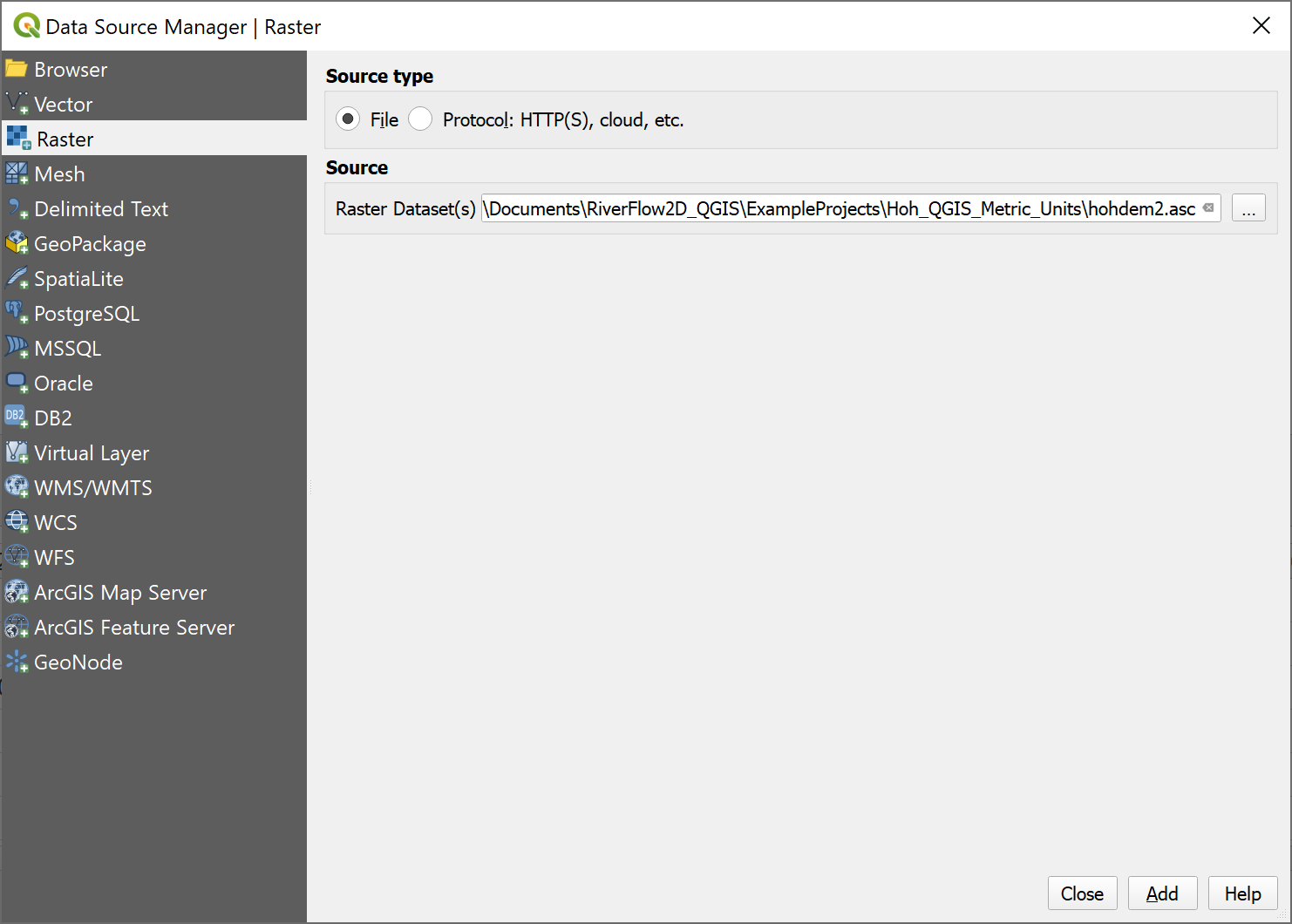
In the dialog search for the tutorial folder and select the 'hohdem2.tif' file as shown:
-
While on the dialog, click Add and click Close.
-
Use the Zoom to Layer button
 to center the image.
Once the process is completed, the raster will be displayed on the screen, by default it is rendered in gray gradient as shown.
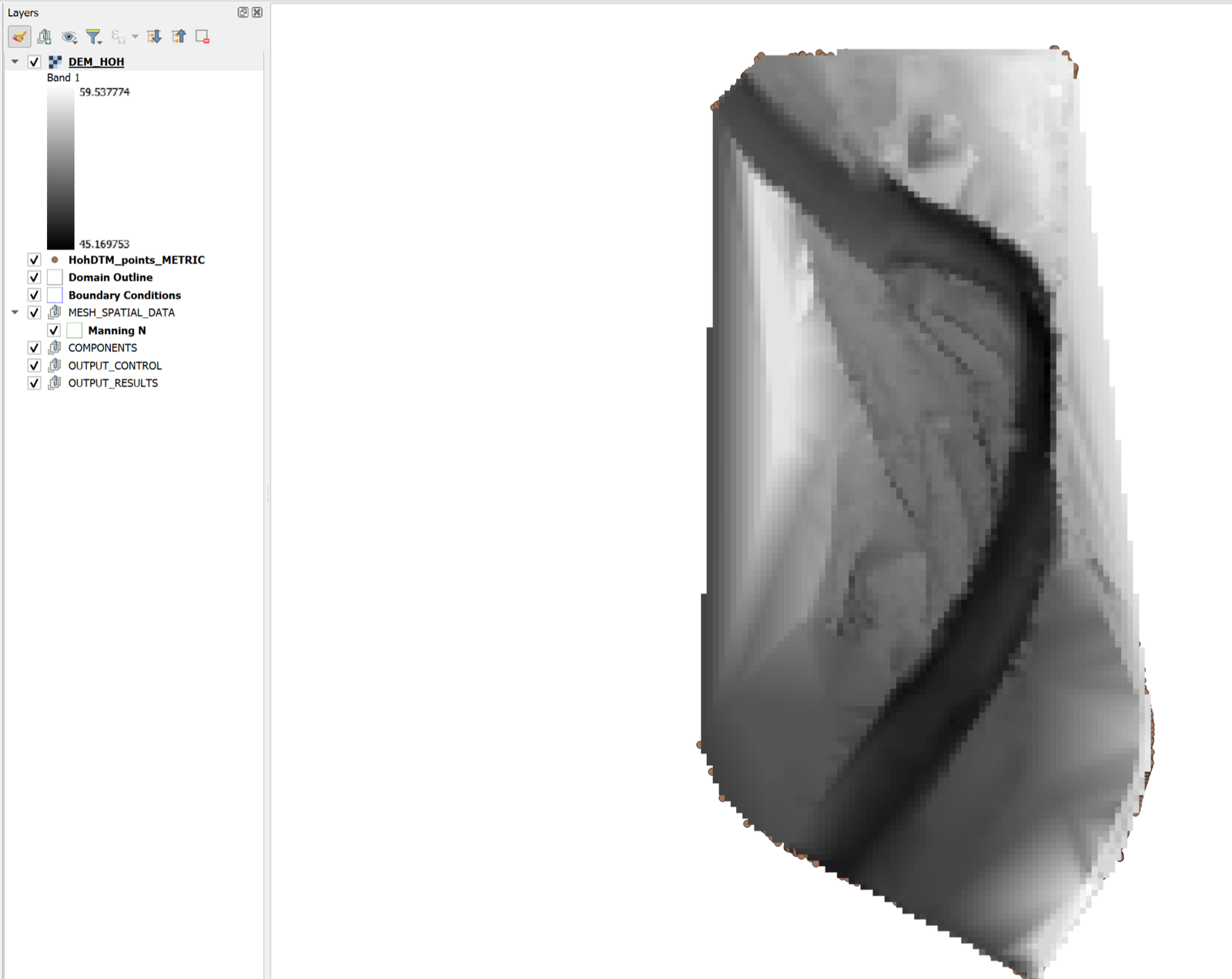
::: shaded Right-clicking on the label of the new raster layer and selecting Properties allows you to change the rendering style for a more informative palette such as Hillshade for instance. :::
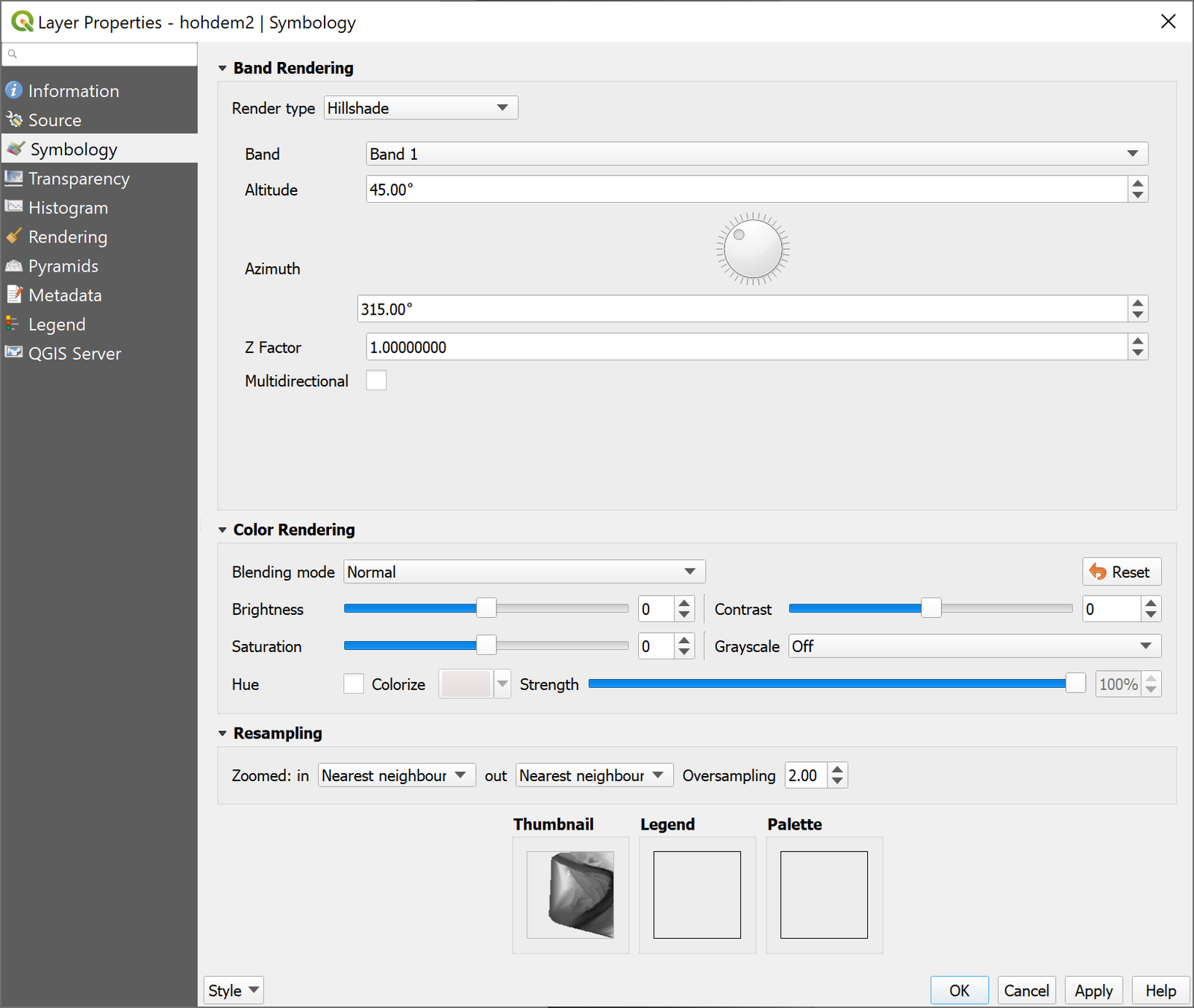
And now the raster layer is displayed with the new palette selected:
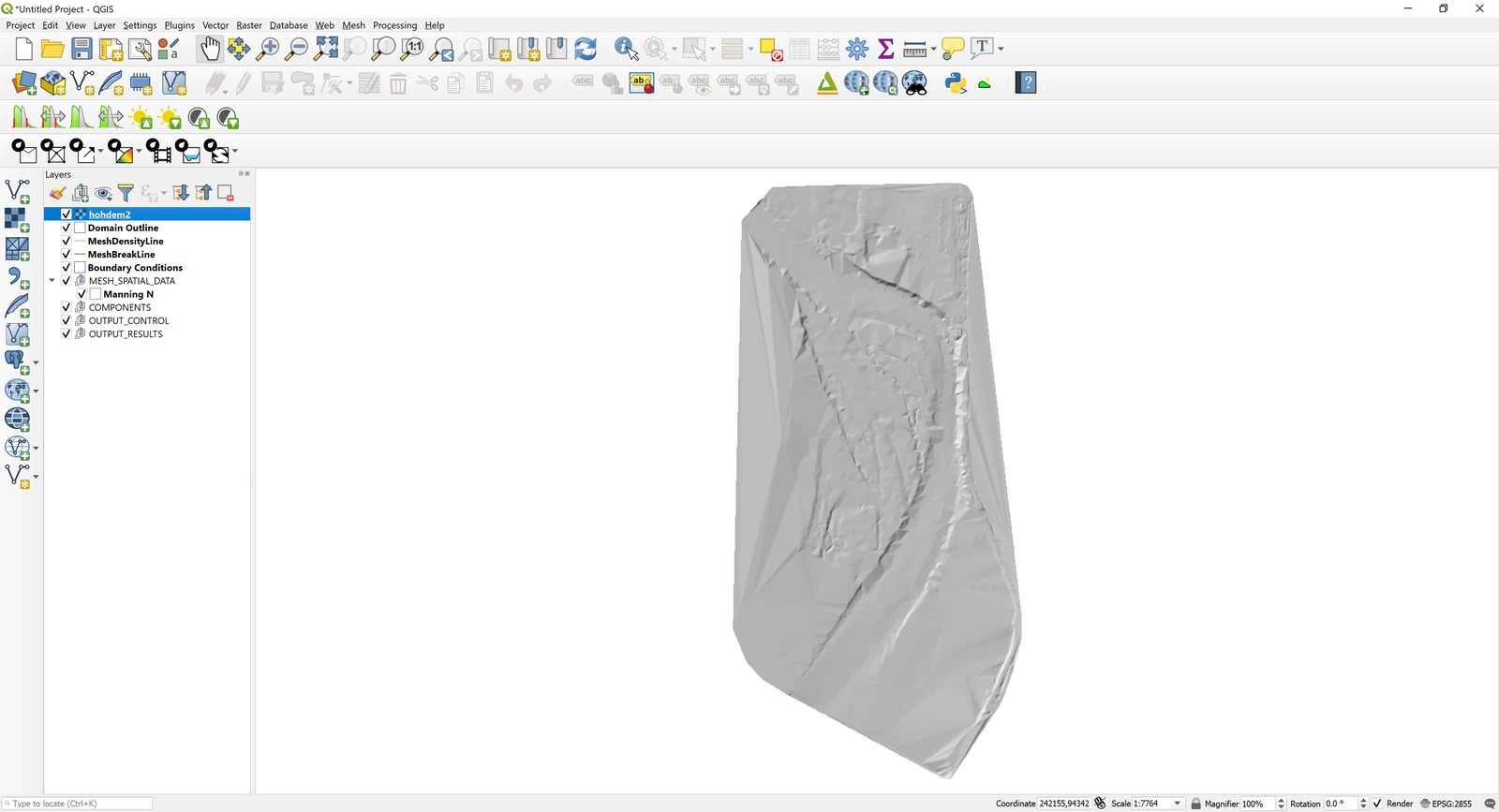
-
You should move the raster layer dragging it to the end of the list of layers to avoid that it would hide or interfere visually with the other layers.
Create the limits of the modeling area
We define the limits of the modeling area drawing a polygon on the Domain Outline layer. To create it do as follows:
-
Click the Domain Outline layer to activate it and then click Toggle Editing (pencil) in the toolbar
-
This activates the rest of the editing buttons. Now click the Add Feature tool which is the bean-looking polygon
 .
.Proceed to delineate the outline of the polygon by clicking the vertices with the left mouse button.
::: shaded Make sure that the polygon is contained within the limits of the raster layer since the program will not extrapolate elevations to areas that are outside of the available data on the raster layer. :::
-
To finalize and close the polygon, right-click on the map view area. A dialog window to input the cell size attribute of the newly created polygon will appear. The CellSize value for the reference size of the mesh cell is indicated. Enter a value of 20 m.
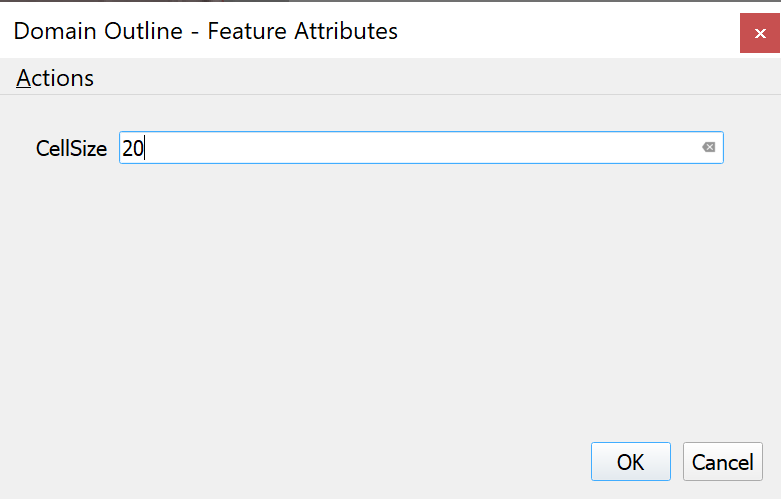
If you want to make any correction in the outline of the created polygon, use the Node Tool
 .
. -
Save the polygon by clicking the Save button
 .
. -
and click on Toggle Editing button to deactivate the layer Edit mode

The Domain Outline is now complete.

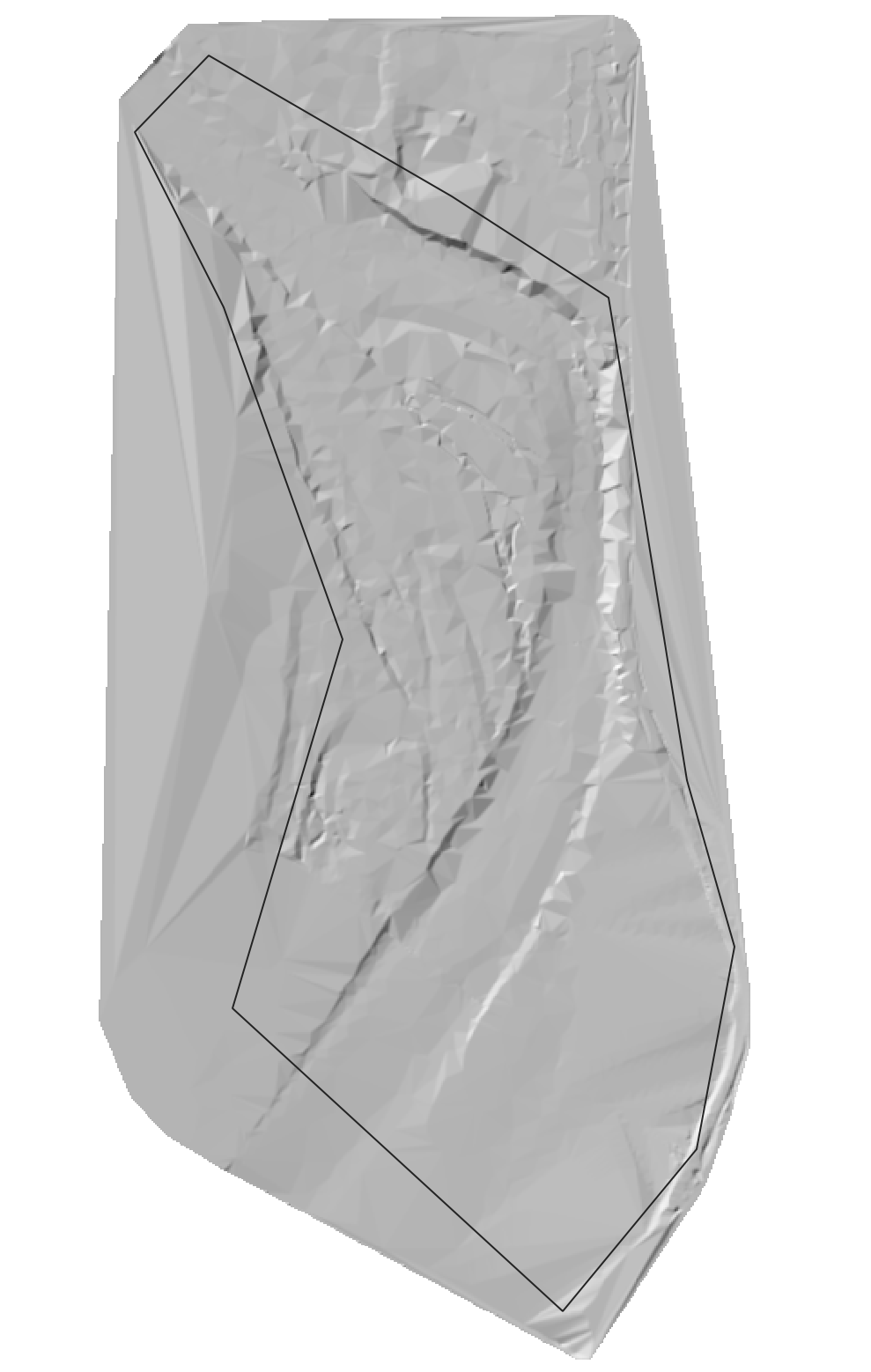
Generating the triangular-cell mesh
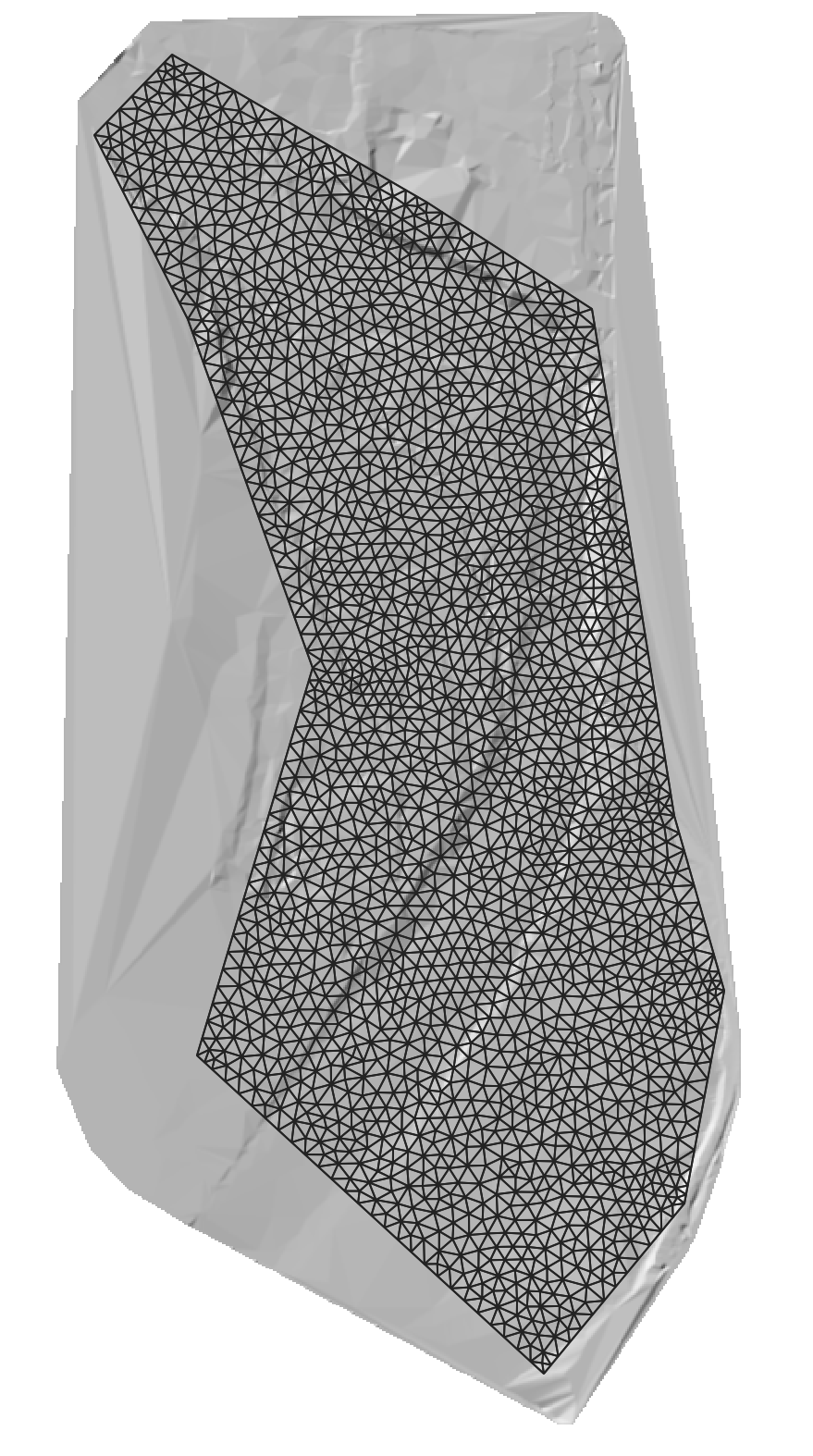
Now that the Domain Outline layer has been created, proceed to create the mesh by clicking on the Generate Trimesh button
The following figure shows the generated mesh. You will also see in the Layers panel the new layer: Trimesh
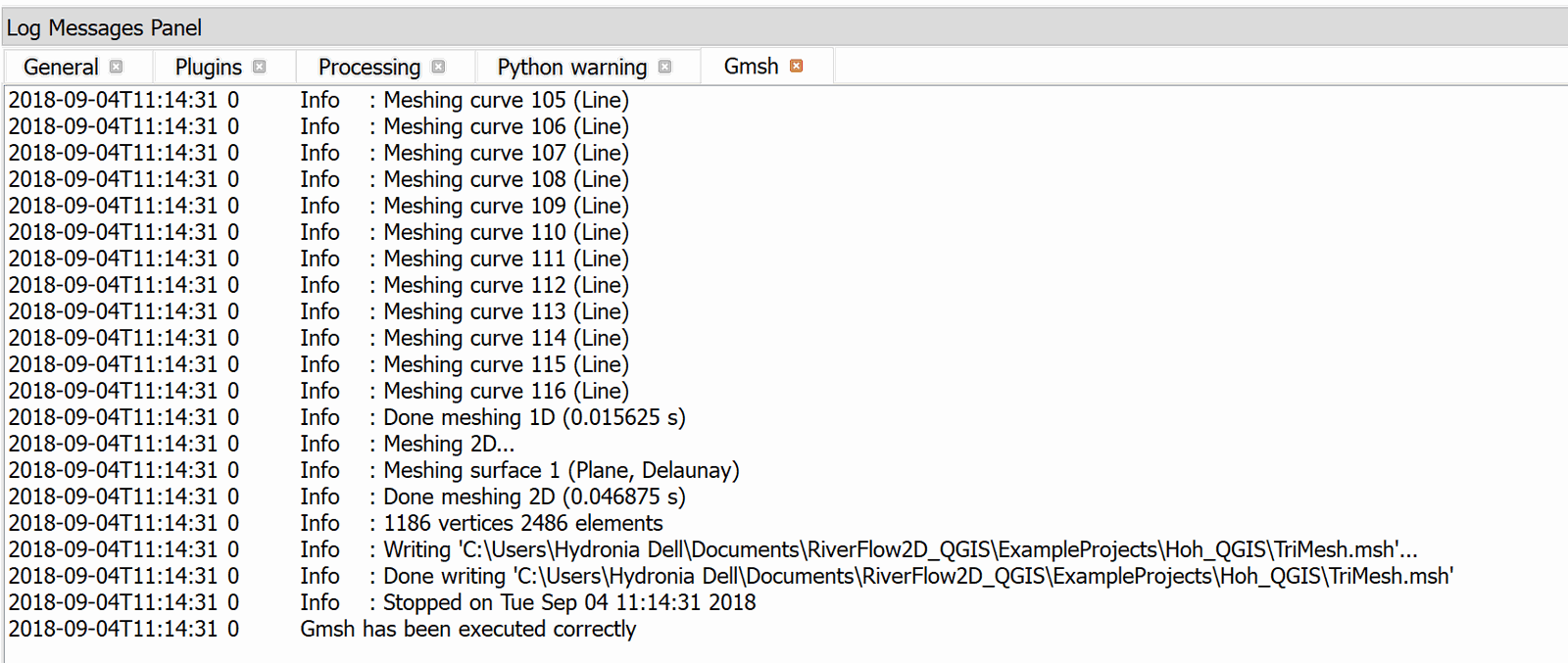
You can see the mesh generation statistics, and other messages produced by the mesh generation program while creating the mesh in the Log messages panel. This window is accessed from the View menu, then by clicking Panels.
Setting up the boundary conditions
Inflow boundary conditions:
-
Select the BoundaryConditions layer in the Layers panel.
-
Click the Toggle Editing button
to add the polygons that will indicate the open boundary segments where inflow and outflow conditions are imposed. Draw a polygon at the upper end of the mesh as indicated in the figure: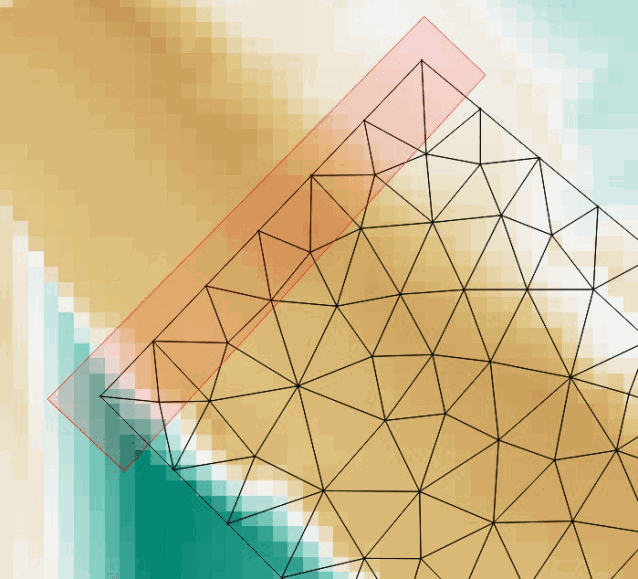
-
To finish the polygon, right-click on desired location. A window to enter the attributes of the newly created polygon is displayed.
-
In the Boundary Cond. ID enter the desired name or leave the default.
-
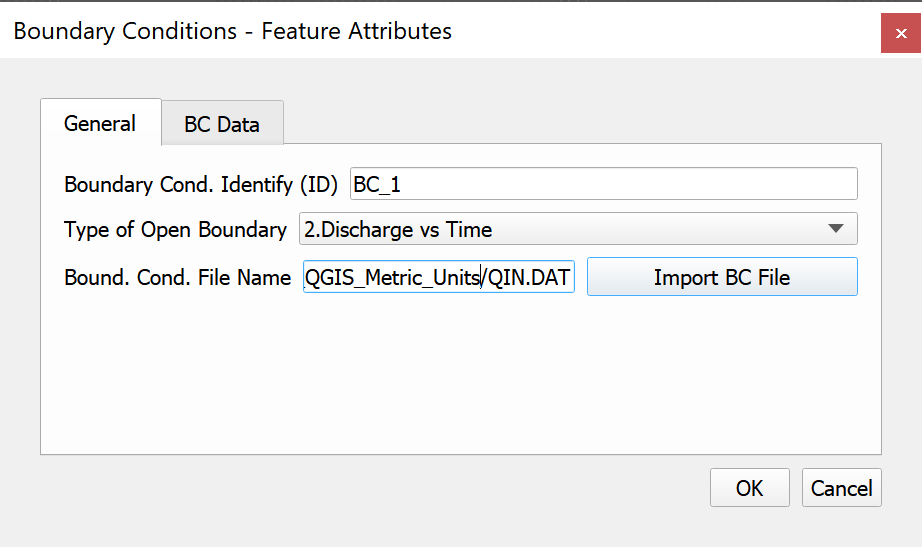
From Type of Open Boundary list, select 2. Discharge vs. Time
-
Click Import BC File button, and search for the 'QIN.DAT' hydrograph file as shown below:
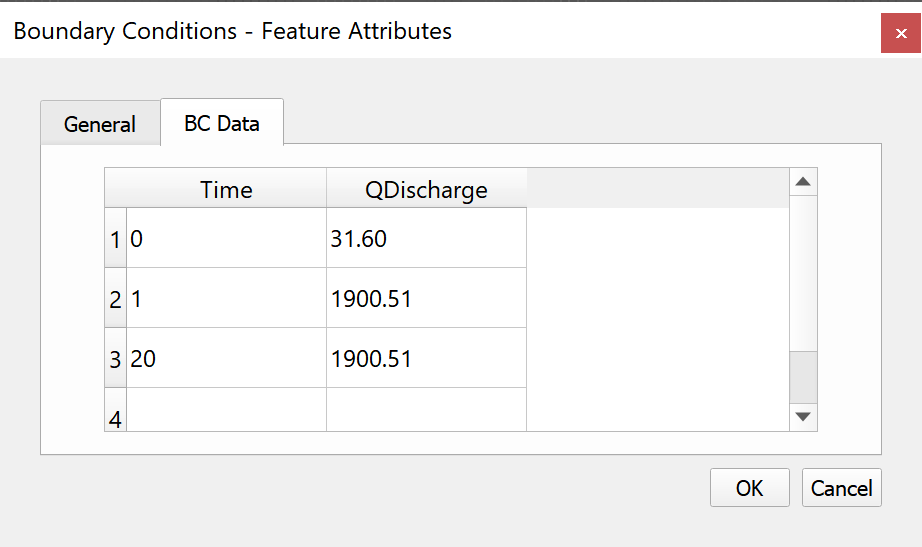
-
Click OK to close the dialog and then click Save
.
Outflow boundary conditions:
-
Draw the polygon defining the outflow boundary condition at the downstream end of the channel as shown.
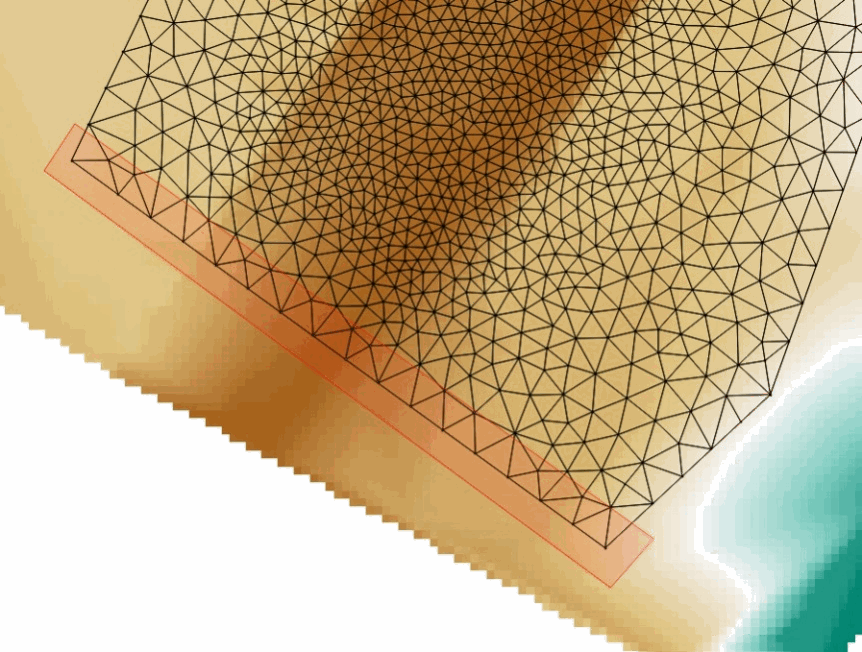
-
Right click to close the polygon. A dialog window will appear to enter the parameters. Select the condition type Uniform flow conditions and enter the channel slope. Slope is entered in So as shown:
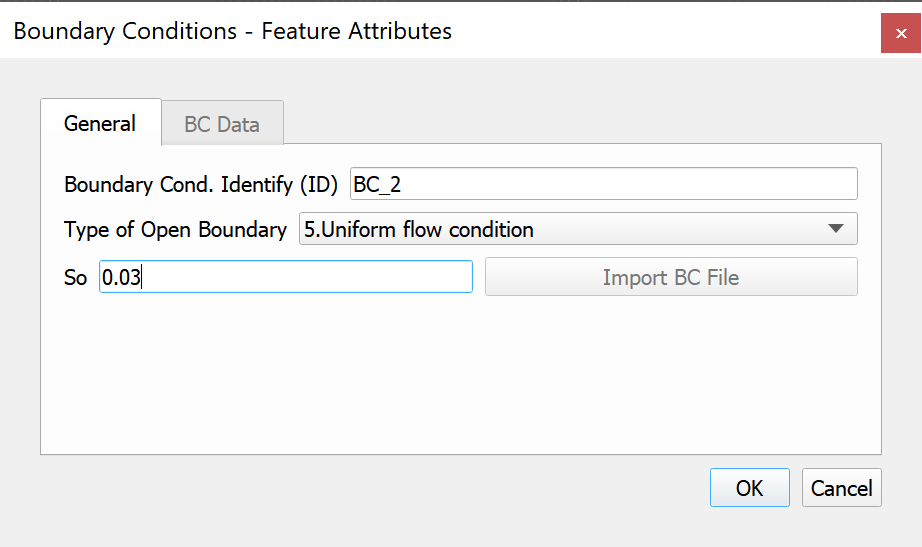
-
Save the changes made to the layer by clicking the Save button
. -
Deactivate editing mode by clicking on the Toggle Editing button
.The figure below shows how the BoundaryConditions layer should look:
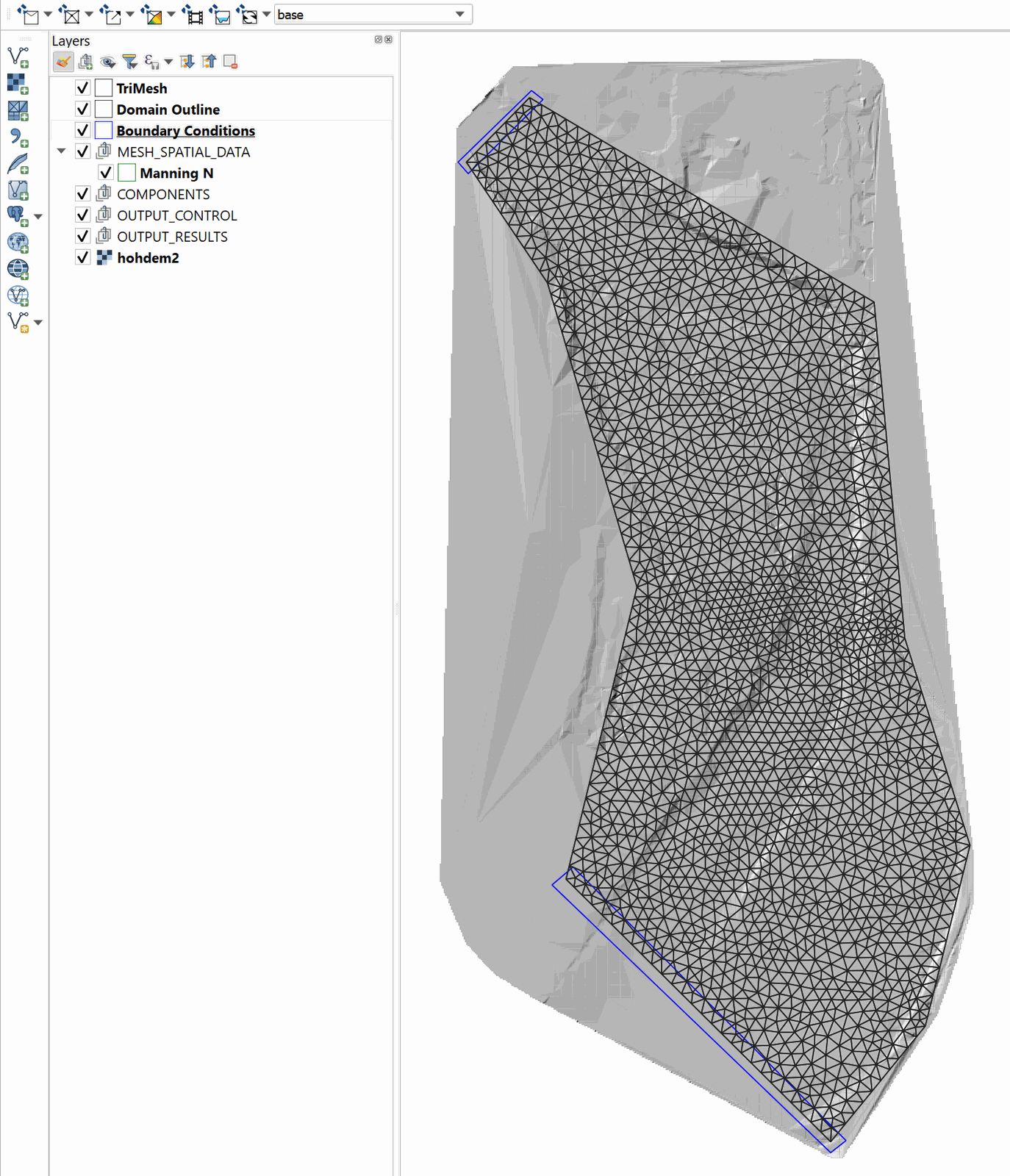
Assigning Manning's n
To assign Manning's n values, we enter polygons with given n's. There can be as many polygons as those required to reproduce the spatial variability of this parameter. In this example, a single polygon will be drawn for the entire area.
-
Select the Manning N layer and click the Toggle Editing button
-
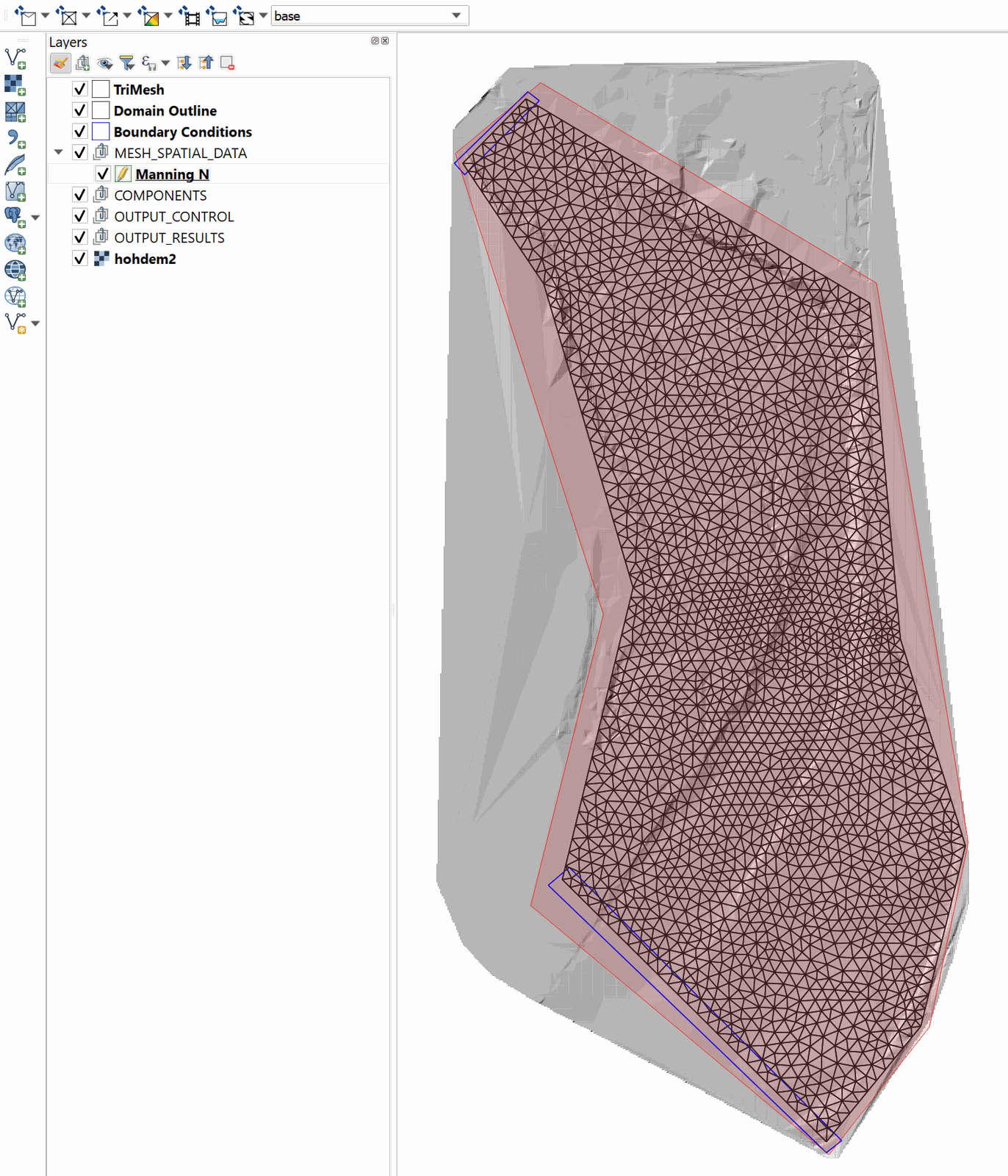
Draw a polygon that covers the entire domain. The polygon may extend beyond the mesh area as shown:
-
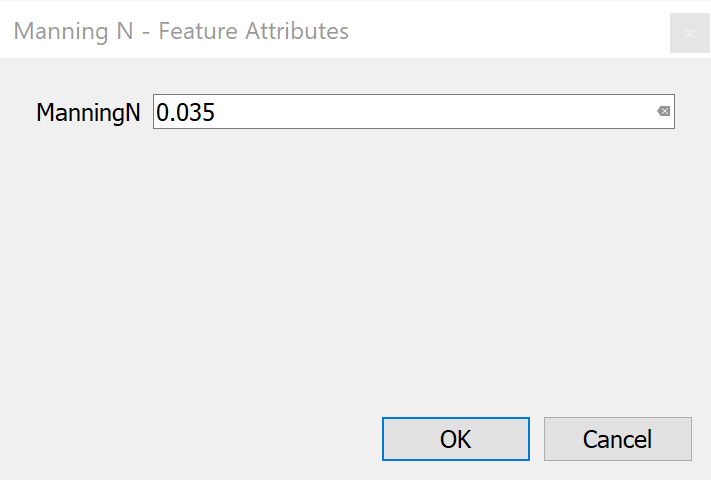
Close the polygon by right-clicking on the end vertex and enter a Manning's n equal to 0.035:
-
Click Save
, and then click the Toggle Editing button to deactivate editing mode.
::: shaded Save the QGIS project using the Save command in the Project menu. Name the project file 'Hoh.qgs'. :::
Exporting the files
Once the layers with the input data to the model have been created, we need to export data files required to run RiverFlow2D.
-
In the RiverFlow2d plugin toolbar, click the Export files for RiverFlow2d button and select Export RiverFlow2d ...
-
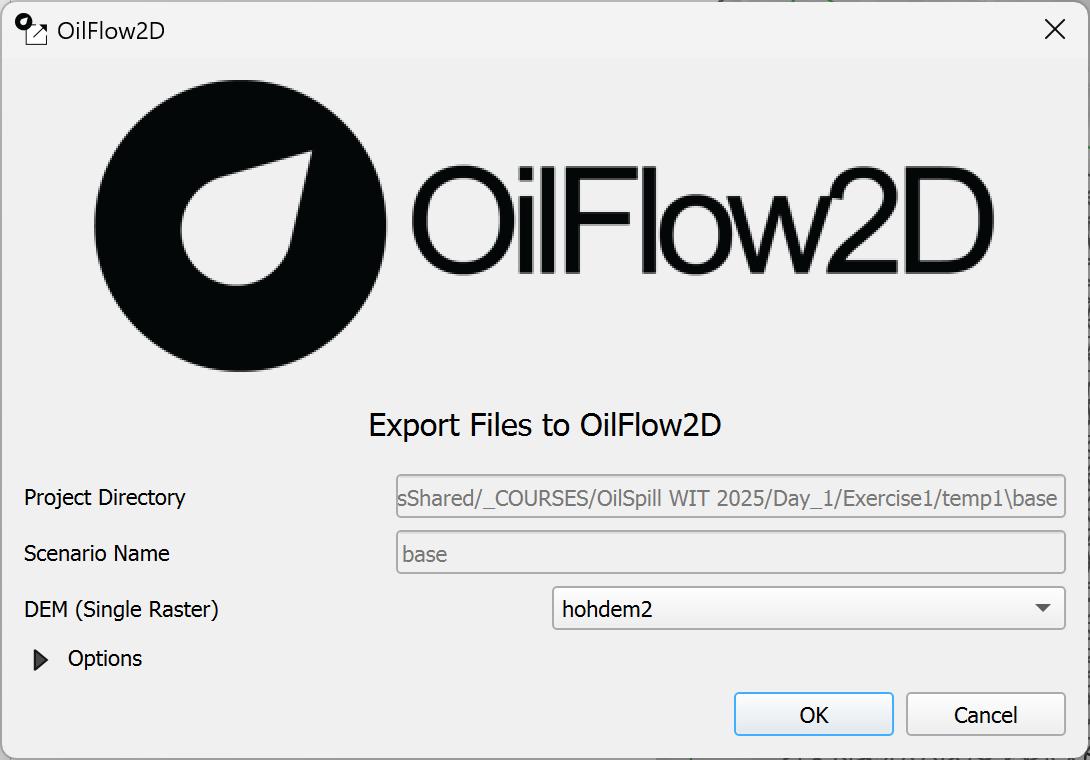
In the export dialog window indicate the Scenario Name and the raster layer of the Digital Elevation Model (DEM).
::: shaded The Scenario name is also the name that will be given to all of the exported files, these names should never be changed manually. :::
-
Click OK.
A message at the top of the Map area shows the progress of the Export process.
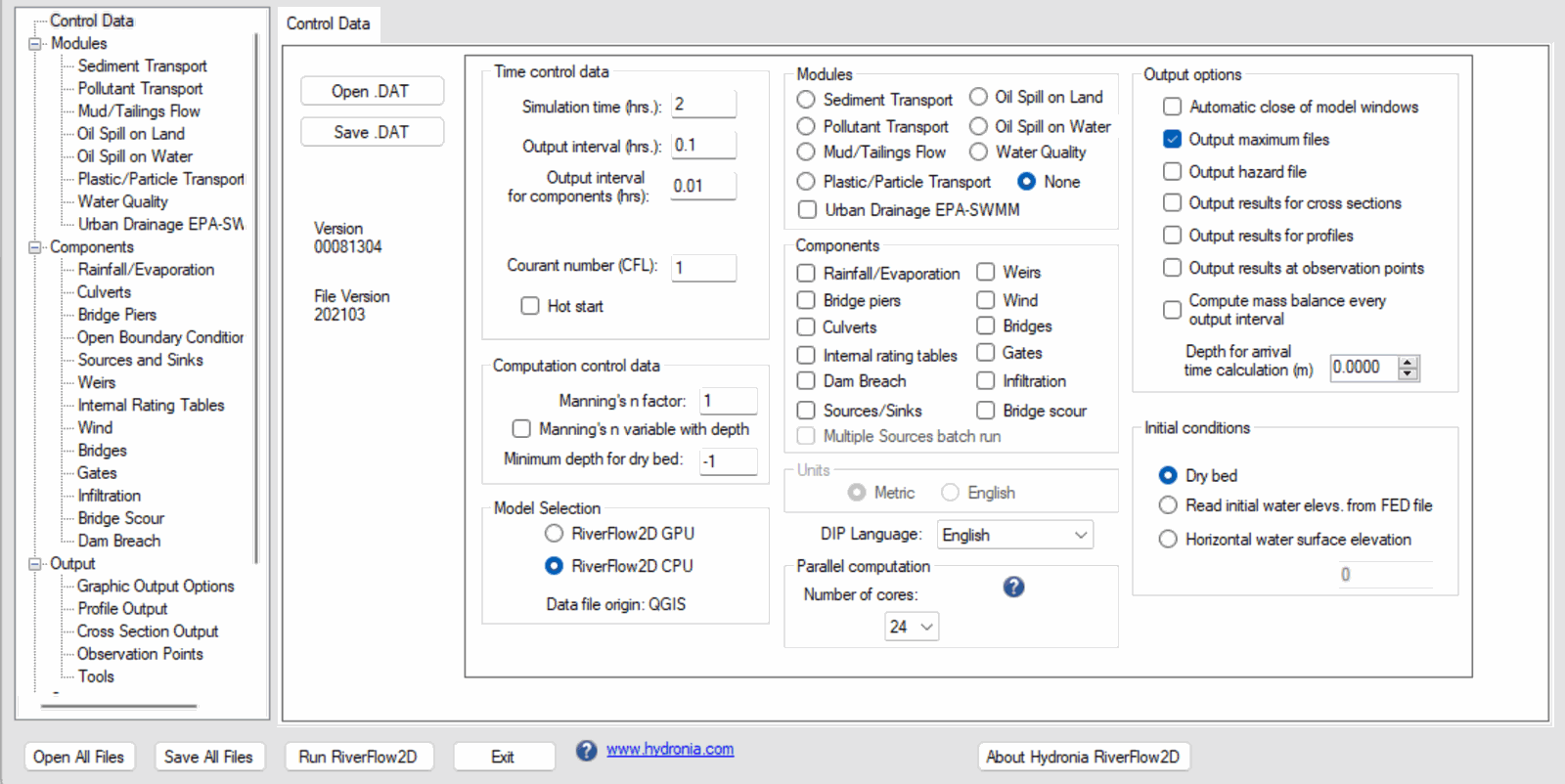
Once the model files have been created, the Hydronia Data Input Program will appear automatically with the main control data file loaded, in this case: 'Hoh.DAT'.
Once the model files have been created, the Hydronia Data Input Program will appear automatically with the main control data file loaded, in this case: 'Hoh.DAT'.
-
Click the Run RiverFlow2D button to run the model.
-
A Dialog box will ask if you want to save changs, no changes were made so select [No].
An image similar to the one shown below should appear:
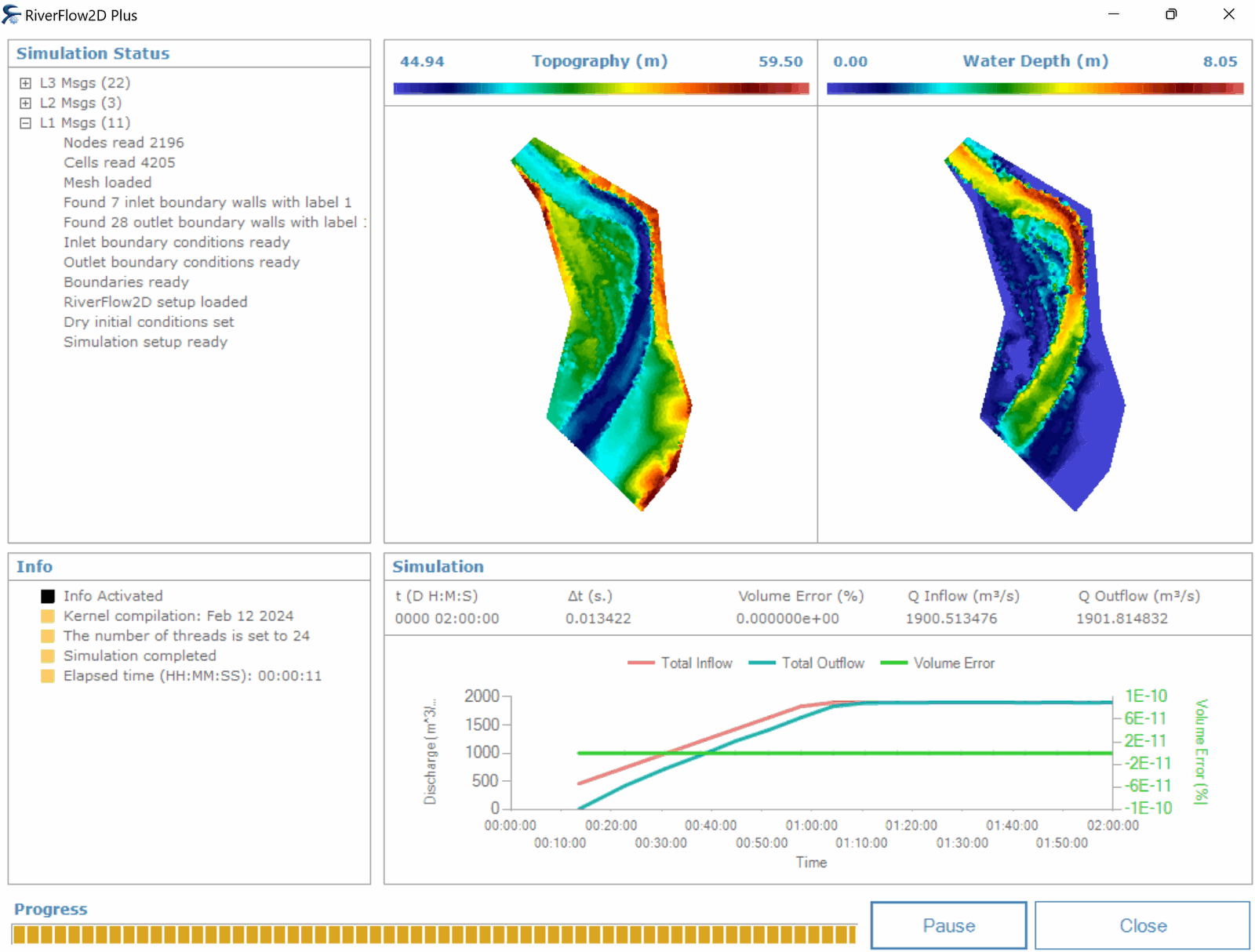
Take some time to explore the information included in this window.
This concludes the Creating your first RiverFlow2D application tutorial.